
If you’ve ever visited a website, you’ve probably wondered what theme it has and what supporting plugins it uses. You found the right article, because we will be covering about how to check WordPress theme and plugins on the website.
Today, there are many themes created by developers for websites using the WordPress CMS, so you may want to install a theme that appeals to you on your website. In addition to themes, there are also many plugins that you can add to your website to support website performance.
There are many eye-catching WordPress themes available on the internet, be it themes for news websites, company profiles, organizations and many more. However, choosing a WordPress theme should be based on the purpose and niche of your website. For example, a news or blog theme can be suitable for a technology niche where it posts a lot of articles. Similarly, the plugins you want to use should be considered as to how effective they are in supporting your website’s performance.
Of course, not all themes or plugins are free. The themes and plugins you want may be premium versions that require you to purchase them directly from the theme creator or official website. However, there are also free themes available that may suit your standards.
Read: How To Find Bing Verification Code
Bear in mind that this article is for educational purposes only. So, we expect you to only check WordPress themes and plugins from other websites to find out what themes and plugins are being used that can be a reference for your website needs. We encourage you to use them wisely to avoid legal consequences and copyright infringement.
How To Check WordPress Themes and Plugin on a Website
To find out which WordPress themes and plugins other websites use, you can use two ways: View Page Source and Inspect.
1. View Page Source
The simplest and fastest way to check the WordPress theme installed on a website is by using the view page source. You may follow these steps.
- Visit a website to see the themes and plugins used.
- Right-click on the homepage and choose View Page Source from the drop-down list.
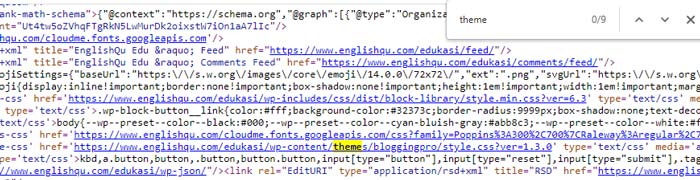
- Press Control + F on the keyboard. Then type Theme or plugin in the search bar. Press Enter.
- The name of the theme or plugin used will appear and be highlighted in the search results, … /newspaper/wp-content-theme. See the image below.
2. Using Inspect to Check WordPress Theme and Plugin
- Visit a website.
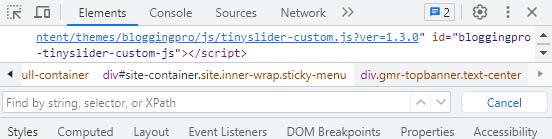
- Right-click on the homepage > Select Inspect.
- Type Theme in the “Find by String, selector or XPath” box then click Enter. See image below.
- Search for the website theme on Google.
If the theme or plugin is a premium version, make sure to purchase them from the theme creator or from official repositories. It should be noted that using a pirated (or nulled) WordPress theme or plugin is harmful to your website as it may contain malicious code that threatens your privacy and data security.