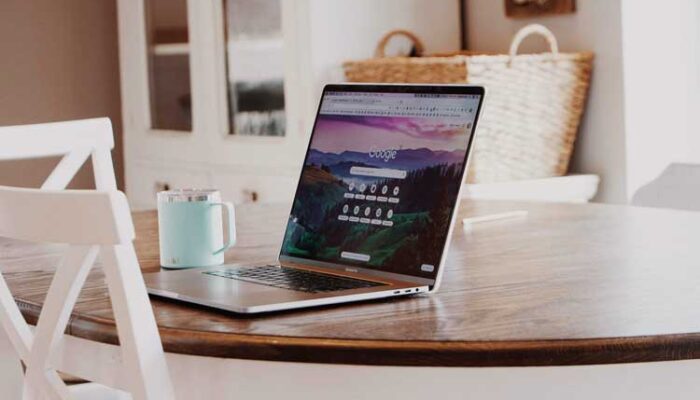
How to delete Chrome bookmarks? It’s easy. Follow our instructions to remove all saved bookmarks in your browser.
Google Chrome has a bookmark feature that allows you to save the address or URL of a website you have visited and open it the next time you visit Chrome. However, you can also remove this website address from your bookmark list.
Find out how to delete bookmarks in Google Chrome. Deleting the bookmarks are easy, just as simple as making it.
How Do I Delete Chrome Bookmarks?
If you are determined to remove the Bookmark bar in Chrome, you may follow these steps to do it.
1. Open New Tab in Chrome
Open new tab in Google Chrome and click the Chrome menu (3 vertical dots) in the top right corner. Then select Menu Bookmarks.
If you choose the fastest step, use the shortcut key: Ctrl + Shift + O (press and hold together). Then proceed immediately to step 3 below.
2. Select Bookmark Manager
If you don’t choose the shortcut key, you can go on from menu bookmarks and select Bookmark Manager.
You will be directed to a Bookmarks page that contains the list of URL that you saved earlier.
Read: How To Find the Lost HTML Tag Verification
3. Deleting Bookmarks
To delete sites in the Chrome Bookmarks must be done one by one. Please right-click on the drop down menu from the bookmark list > click delete.

Deleting Chrome Bookmarks is Easy, isn’t it?
Chrome bookmarks are easy to delete. Starting from opening up new tab, click the drop-down menu, and remove it from the bookmark manager.
You may also use shortcut key to be directed to the bookmark manager.
Get other tips and latest tech information from EnglishQu Zone or you may visit us in Google News.